The PrinterLogic Self-Service Printer Installation Portal is easy for anyone—even brand-new employees—to access, navigate, and understand.
On Windows, for example, the user begins by simply left-clicking on the PrinterLogic client icon in the system tray. This brings up an internal webpage (which is also accessible directly by URL) in the default web browser that shows a location tree in a left-hand pane as well as a floor plan map in the main window.
In large organizations, the self-service portal can be configured to open automatically to a user’s exact location. Using the tree, the user can then quickly drill down to their specific floor to view a map of their actual floor with physical printers denoted by corresponding color or monochrome icons. Clicking on an icon will install both the printer and print driver.
It’s about as close as you can get to GPS for print mapping.
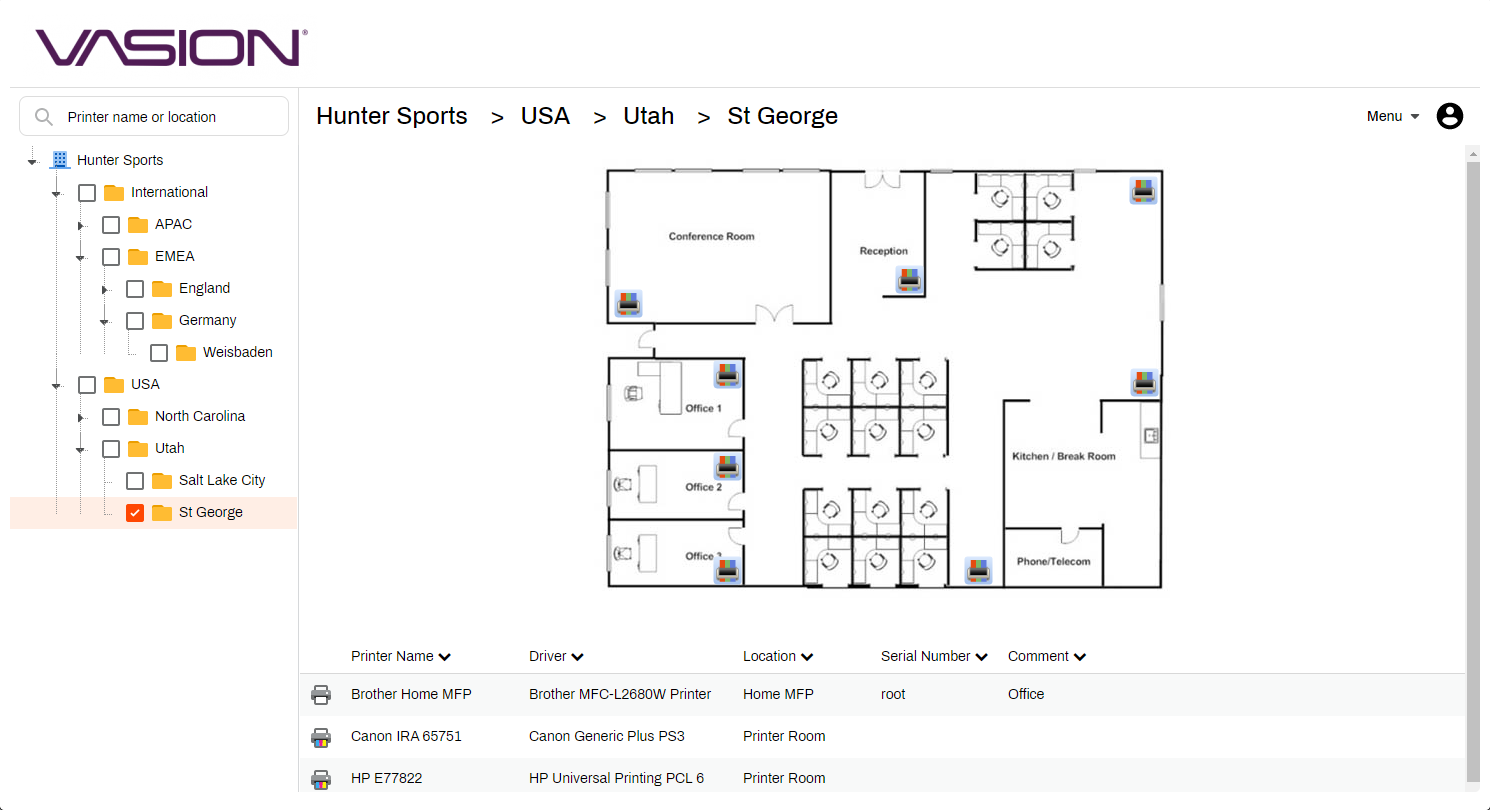
Figure 1: End users can see the layout of their location and easily install printers using a floor plan map or tree view via the PrinterLogic self-service portal.
In addition to the straightforward icons, the portal also shows a list of available printers with descriptive names. The names of the printer drivers, if any, are indicated alongside the names of the printers.
And if IT hasn’t uploaded or updated the custom floor plan maps for a particular location, that’s okay. The list of available printers will still appear, and users can click on these list items to install their desired printer and the associated print driver.
Later, if the user needs to carry out print mapping again for a new or different printer, they can access the self-service portal again using any of the methods described above. This is especially useful for mobile employees who hop from location to location and need instant access to printers wherever they go. It also benefits the helpdesk, as they no longer have to field urgent printer installation requests.