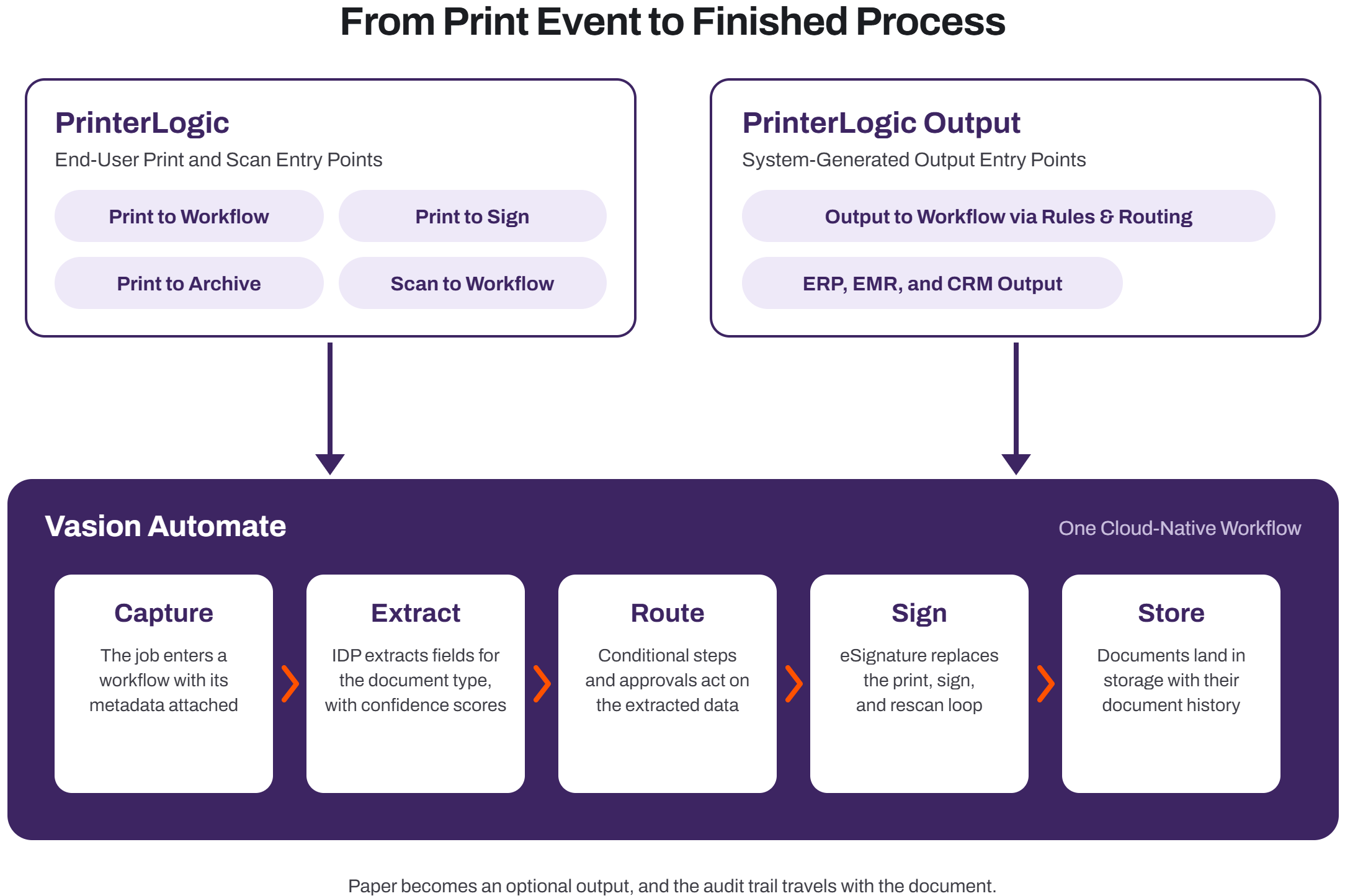
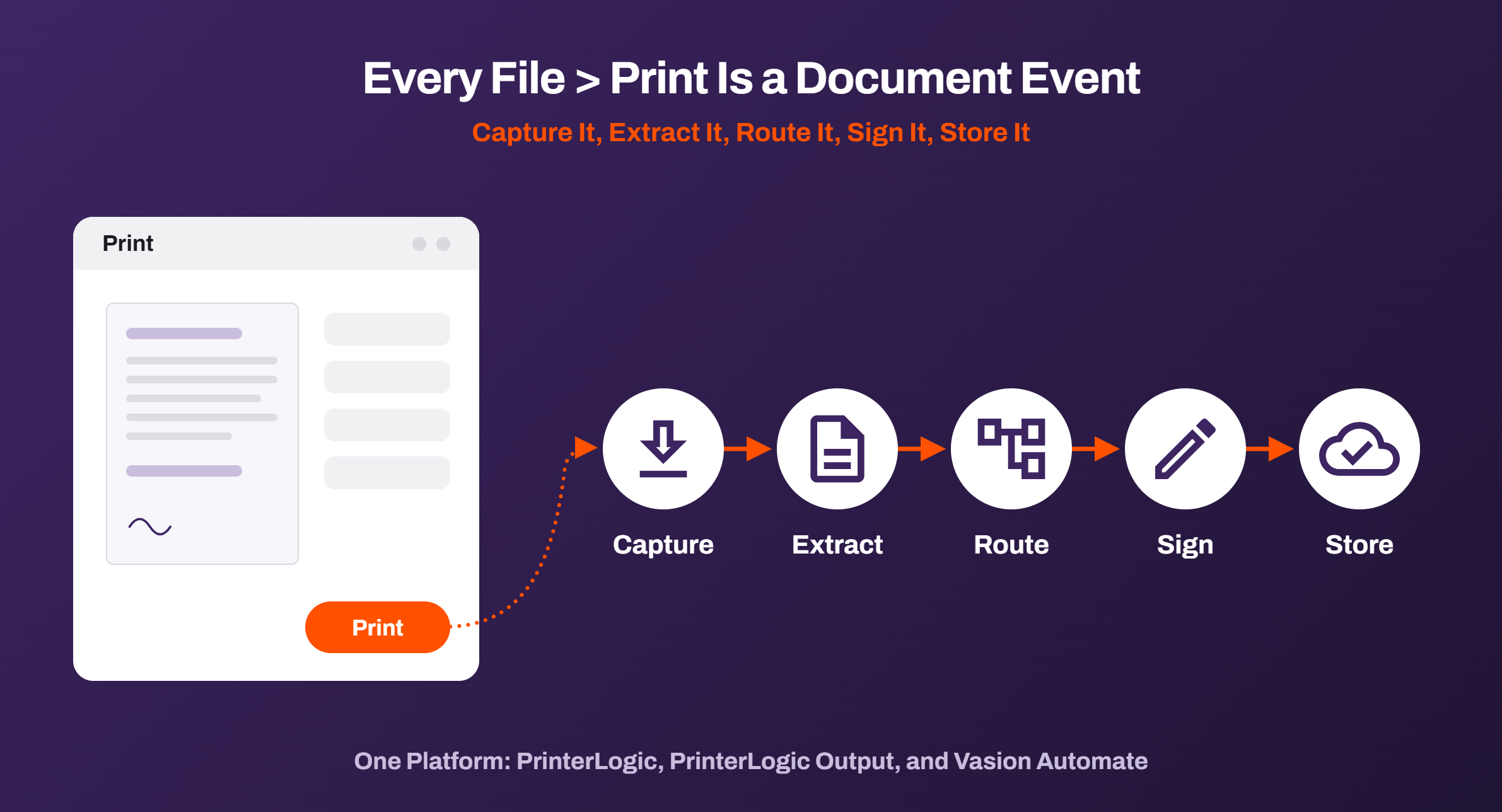
The interesting part is how a print job crosses from the print layer into the process layer. The umbrella capability is Print to Automate, which connects print events to Vasion Automate through three destinations: Print to Archive, Print to Workflow, and Print to Sign.
Print to Archive runs in the background with no user interaction. Admins configure a workflow that fires on print jobs, at a global level or per printer, and the document is stored automatically. Point the accounting floor's printer at an archive workflow and every job from that queue lands in storage with its history intact, whether or not anyone remembers to file it.
Print to Workflow is the user-initiated path. From the standard print dialog, the user selects Send To Vasion Automate as the destination, picks from the workflows they have permission to start, and submits. No paper is produced. The document goes straight into the process. Print to Sign works the same way for signatures, routing the document directly into the Signature tool and required fields are automatically mapped where appropriate.
Scan to Workflow covers documents that begin on paper. From the multifunction printer's scanning interface, a user triggers a Vasion Automate workflow directly, and the scanned file arrives with its metadata attached. Capture also supports mobile and browser-based scanning with OCR, so intake is not chained to the copier.
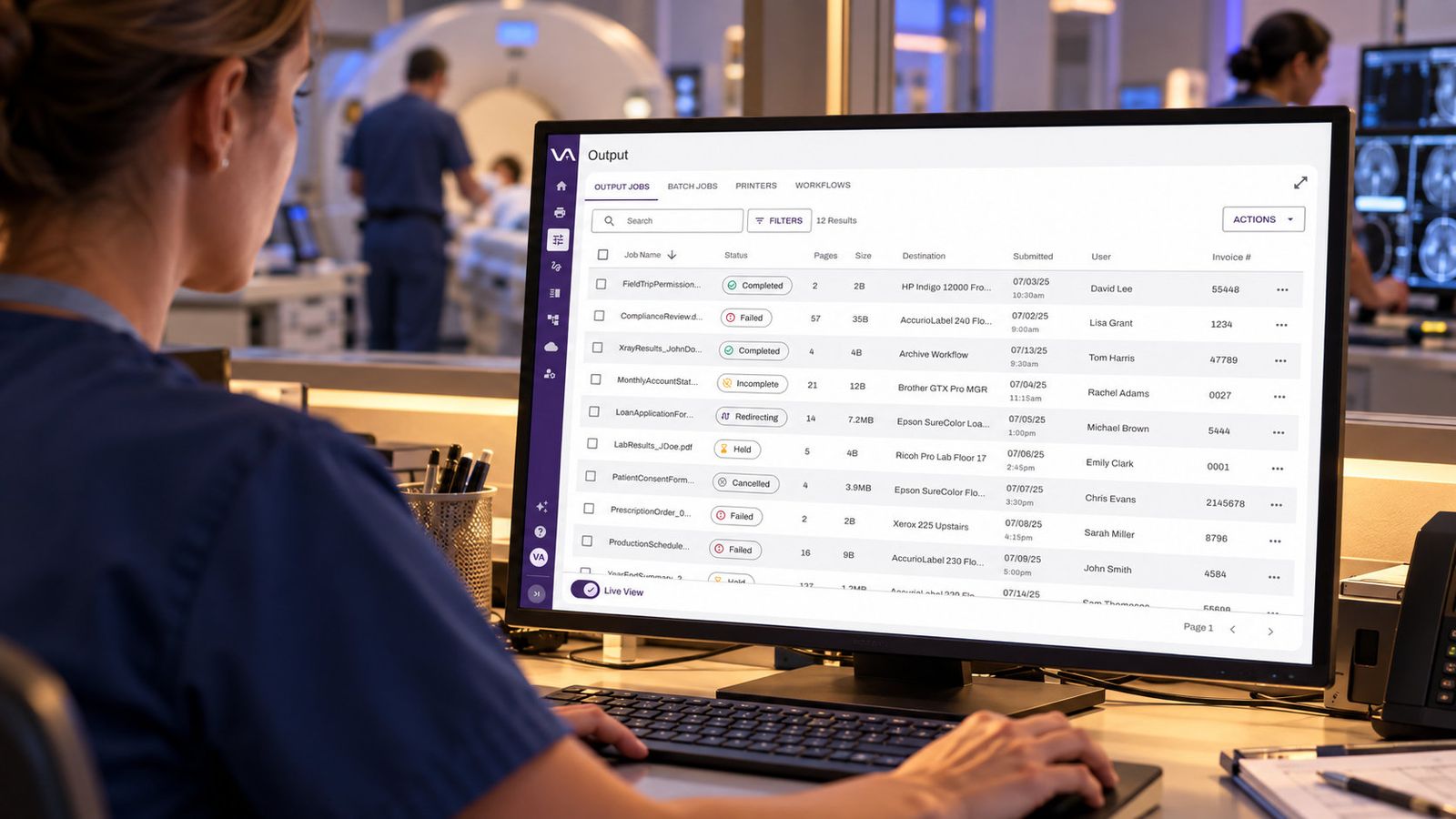
Output to Workflow extends the pattern to system-generated documents. In PrinterLogic Output Rules & Routing, a Send to Workflow action pushes a job from your ERP or EMR into a Vasion Automate workflow. An invoice run can flow into an approval process the moment the system emits it, with no human in the loop at intake.


 Every organization has a form that gets printed, signed with a pen, scanned at a copier, emailed to someone, and filed in a folder nobody audits. The print job that started that chain knew almost everything required to finish it: who printed it, what the document was, and where it needed to go next. Then the driver rendered it, the printer put it on paper, and all of that context was thrown away.